![kudurrustone-logo.png]](https://kb.kudurrustone.com/hs-fs/hubfs/kudurrustone-logo.png?height=40&name=kudurrustone-logo.png)
Overview
Email Templates let you define reusable email bodies (with merge-field placeholders) for different contexts—Projects, Quotes, Clients, and more. Once set up, these templates ensure consistency and save you typing whenever you send routine messages.
Prerequisites
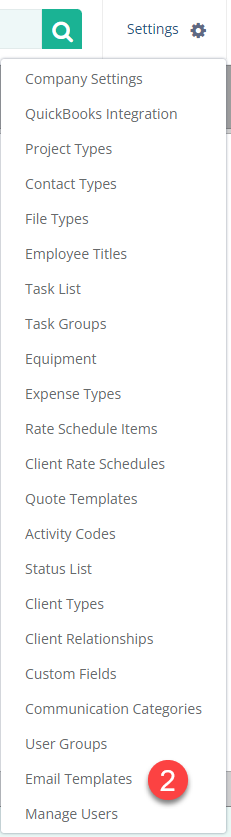
The Email Templates are managed by Administrators of your account and can be accessed from the Settings menu as shown below.

From the Settings Menu you should see the "Email Templates" item. Click on that to be able to manage your company Email Templates.
Edit the template properties
Once the Email Template list is opened you can Add new Templates by clicking on the Create New button
| Field | What to do |
|---|---|
| Template Name | Give it a clear, concise name (we recommend ≤ 25 characters so it displays nicely). |
| Email Type | Choose the context (Project, Quote, Client, etc.). |
| Subject | Enter the default subject line for this template. |
If you change the Email Type, you’ll need to Save and re-open the template before the merge-field list (next step) updates to match the new type.
Build the email body
-
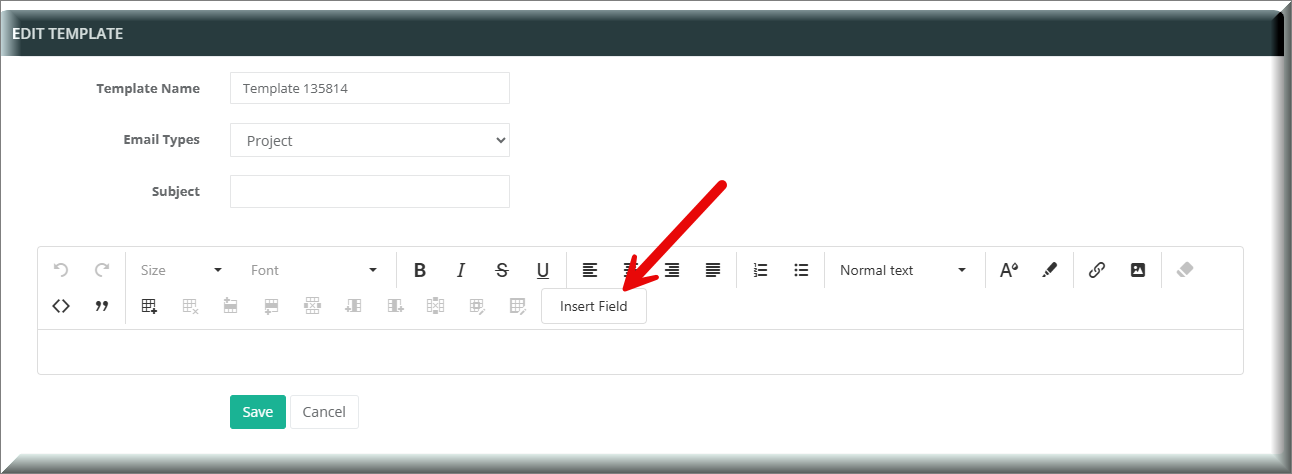
In the WYSIWYG editor area, type your message.
-
Use the toolbar to format text (bold, lists, links, images, etc.).
-
Click Insert Field to open the merge-field dropdown.
-
The list of available fields (e.g.
,) is driven by the Email Type you selected. -
Selecting a field inserts its placeholder at your cursor.
-
Save or cancel your changes
-
Save → applies your changes and returns you to the list of templates.
-
Cancel → discards edits and returns you to the list.