![kudurrustone-logo.png]](https://kb.kudurrustone.com/hs-fs/hubfs/kudurrustone-logo.png?height=40&name=kudurrustone-logo.png)
A retainer is an up-front amount you collect against a quote. In Kudurru Stone you can bill that retainer onto a project invoice as a single "Retainer" line, while the system quietly records how much of each quote line the retainer covers. That way, when you or a coworker invoices the remaining work later, only what is left to bill shows as available.
Overview
Billing a retainer does two things at once:
- It adds one line to the invoice, titled "Retainer," for the full retainer amount. This is the amount the client sees and pays.
- It marks each quote line as billed by a percentage that adds up to the retainer. This does not add any money per line - it only records progress, so the same work is not billed twice on a later invoice.
Because the money lives on a single line and the per-line coverage is tracked separately, the client gets a clean invoice with one Retainer line, and your quote billing stays accurate.
Before you begin
The retainer amount comes from the quote, not the invoice. Make sure the quote has a retainer set before you try to bill it:
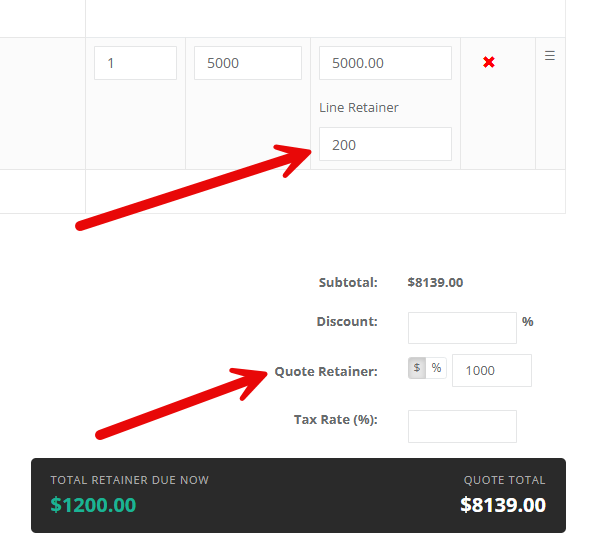
- A Quote Retainer (a dollar amount, or a percentage of the quote subtotal), and/or
- A Line Retainer on individual quote lines.
The total retainer Kudurru Stone bills is the Quote Retainer plus any Line Retainers. If a quote has no retainer, no Bill Retainer button appears for it. For how to enter these on the quote, see Setting a Retainer on a Quote.
The Bill Retainer window
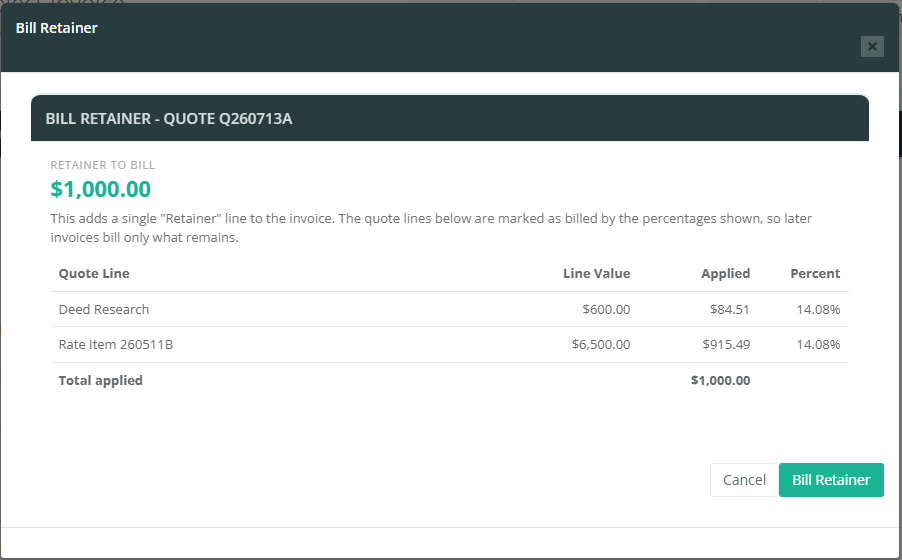
When you open the Bill Retainer window, Kudurru Stone shows the retainer amount and a preview of how it will be applied across the quote lines.
| Field | Notes |
|---|---|
| Retainer to bill | The total retainer for the quote. This is the amount added to the invoice and charged to the client. |
| Quote Line | Each quote line the retainer will be applied against. |
| Line Value | The full value of that quote line (unit price times quantity). |
| Applied | The dollar amount of the retainer allocated to that line. |
| Percent | The percentage of that line marked as billed by the retainer. |
| Total applied | The sum of all Applied amounts. In most cases this equals the retainer to bill. |
How the retainer is spread: any Line Retainer is applied to its own quote line first, then the Quote Retainer is spread across the remaining lines in proportion to their value. Every line is capped at 100 percent billed, and any overflow moves to the lines that still have room.
If the retainer is larger than the quote's remaining billable value, Kudurru Stone shows a warning. The full retainer is still charged to the client; only the portion that fits is marked against the lines.
Adding a retainer to an invoice
- Open the project invoice (Project Invoices, then Edit the invoice you want).
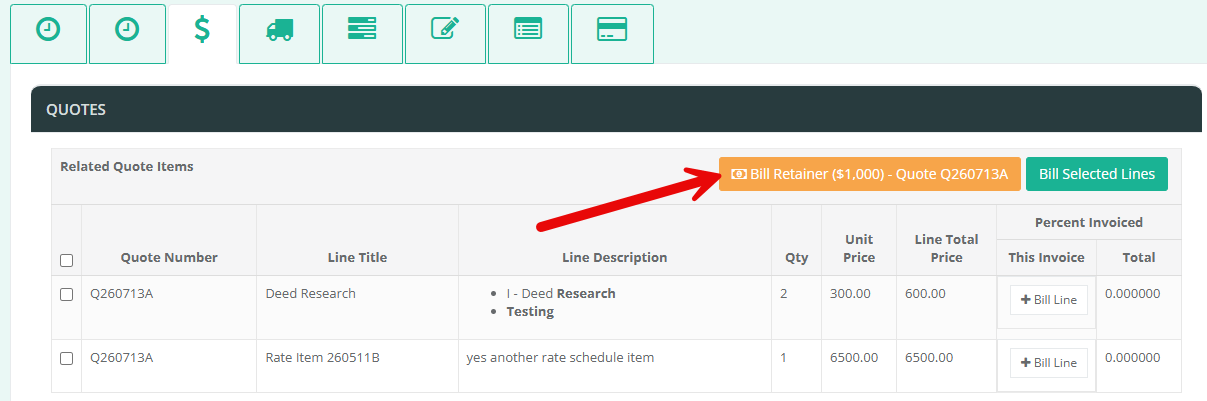
- Select the Quotes tab. This is the Related Quote Items section.
- Find the Bill Retainer button for the quote you want. It is labeled with the retainer amount and the quote number, for example "Bill Retainer ($1,000) - Quote 1042."
- Click the button to open the Bill Retainer window.
- Review the retainer amount and the per-line allocation preview.
- Click Bill Retainer to confirm, or Cancel to close without billing.
Clicking Bill Retainer saves any pending changes on the invoice first, then adds the Retainer line and refreshes the page.
How the retainer appears on the invoice
After billing, you will see:
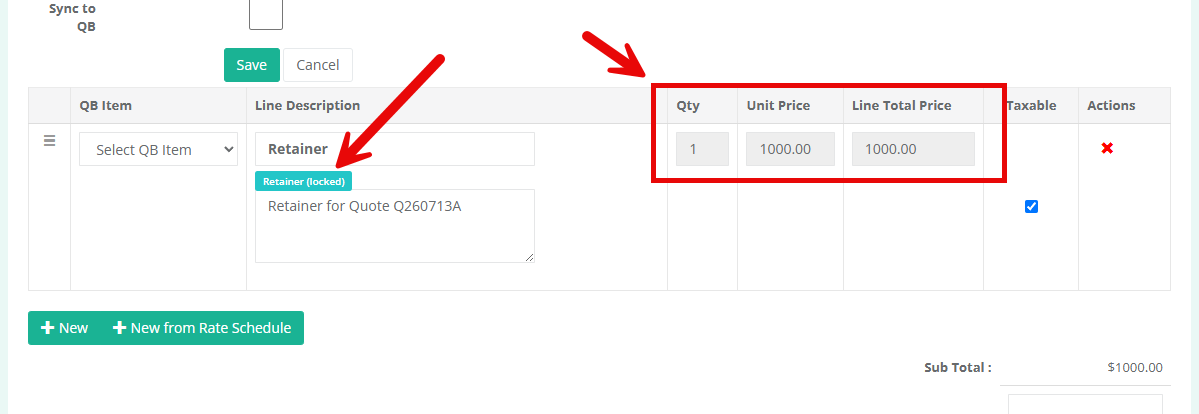
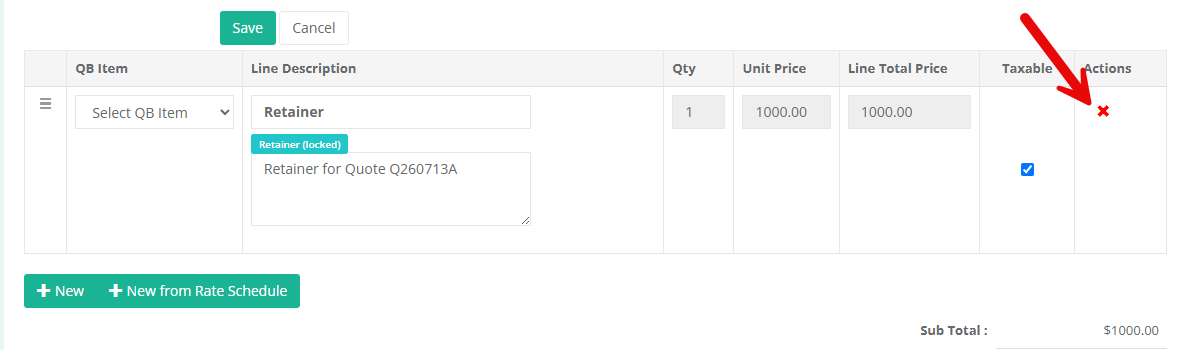
- A single Retainer line in the invoice's line item list, described as "Retainer for Quote [number]," for the retainer amount. This line is marked "Retainer (locked)" and its Quantity, Unit Price, and Line Total cannot be edited directly, so the amount stays in step with what was applied to the quote lines.
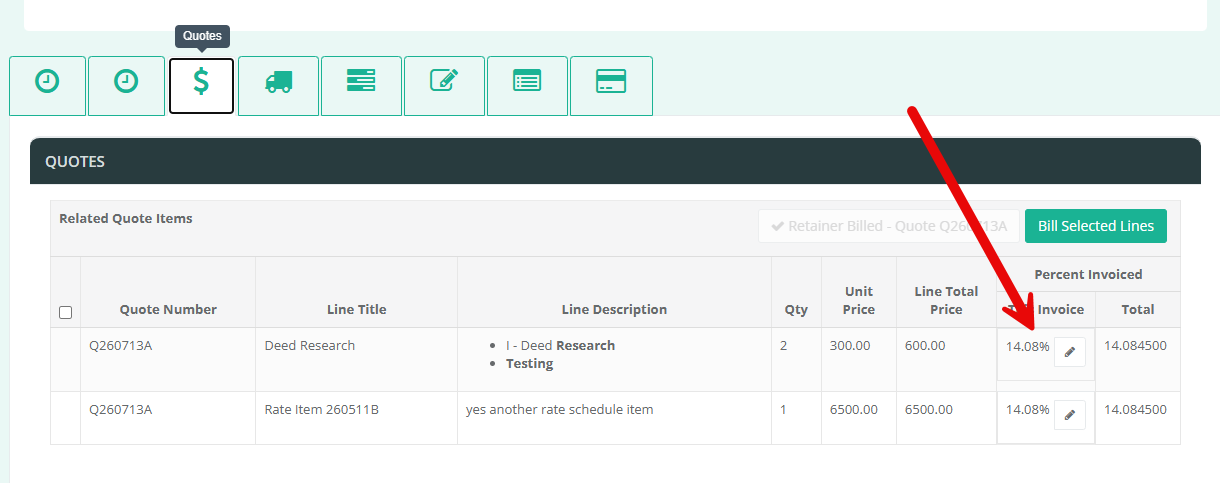
- Updated Percent Invoiced values on the Quotes tab for each affected quote line, reflecting the portion the retainer covered.
- The Bill Retainer button for that quote is now a disabled button reading "Retainer Billed - Quote [number]," because a quote's retainer is billed only once.
Editing or changing a billed retainer
The Retainer line amount is intentionally locked, so it cannot be changed inline. To change a billed retainer:
- Remove the Retainer line from the invoice (see below).
- If the amount needs to change, update the retainer on the quote.
- Bill the retainer again from the Quotes tab.
This keeps the invoice amount and the quote line coverage consistent with each other.
Removing a retainer
Delete the Retainer line the same way you delete any invoice line - using the remove (red X) action on that row in the line item list. When you remove the Retainer line, Kudurru Stone automatically clears the coverage it recorded against the quote lines, so their Percent Invoiced values return to what they were. The Bill Retainer button for that quote becomes available again.
Tips
- Set the retainer on the quote before invoicing. The Bill Retainer button only appears for quotes that have a retainer amount.
- A quote's retainer can be billed once. If you need to redo it, remove the Retainer line first, then bill it again.
- The client sees one Retainer line. The per-line percentages are internal tracking to prevent double billing - they do not appear as separate charges.
- After billing a retainer, check the Percent Invoiced column on the Quotes tab so you know how much of each line remains to bill on future invoices.
- If you see the "larger than remaining billable value" warning, the client is still charged the full retainer; it simply exceeds what is left to mark against the quote lines.