![kudurrustone-logo.png]](https://kb.kudurrustone.com/hs-fs/hubfs/kudurrustone-logo.png?height=40&name=kudurrustone-logo.png)
Overview
Calculated Columns live at the company level, not inside a single view. You create the column once from the calculator icon on the Project Dashboard toolbar, then add it to whichever views should show it through Edit Columns. The same column can appear on several views at once.
A few things to know before you start:
- Every value in an expression comes from the project row itself. A Calculated Column is arithmetic across numbers that already exist for that project, not a new query.
- Calculated Columns are always numeric. They support + - * / and parentheses.
- Calculated Columns are named "Calculated" and not "Custom" on purpose. The dashboard already has "Custom Field" columns, which are the per-project fields you fill in on Project Edit. Those store a value. A Calculated Column computes one.
- Calculated Columns are computed after the project list is retrieved, so the grid cannot sort on one. Sort on a standard column, or export to Excel and sort there.
Opening Calculated Columns
On the Project Dashboard toolbar, next to Current View, click the calculator icon.

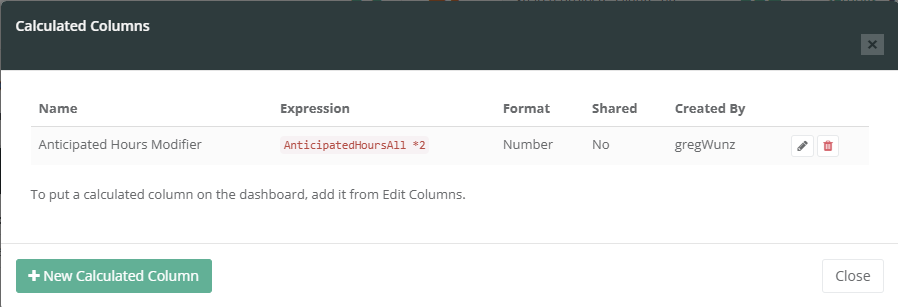
The window that opens lists every Calculated Column you can use: the ones you created, plus any that other people in your company have shared. Each row shows the name, the expression, the format, whether it is shared, and who created it.
Fields in the editor
Click New Calculated Column to open the editor.
| Field | Notes |
|---|---|
| Column Name | The header shown on the dashboard and in the Excel export. Up to 100 characters. Must be unique within your company, and cannot start with "calc:". |
| Expression | The math. Up to 500 characters. Supports + - * / and parentheses. Field names are not case sensitive, so "wagestotal" and "WagesTotal" both work. |
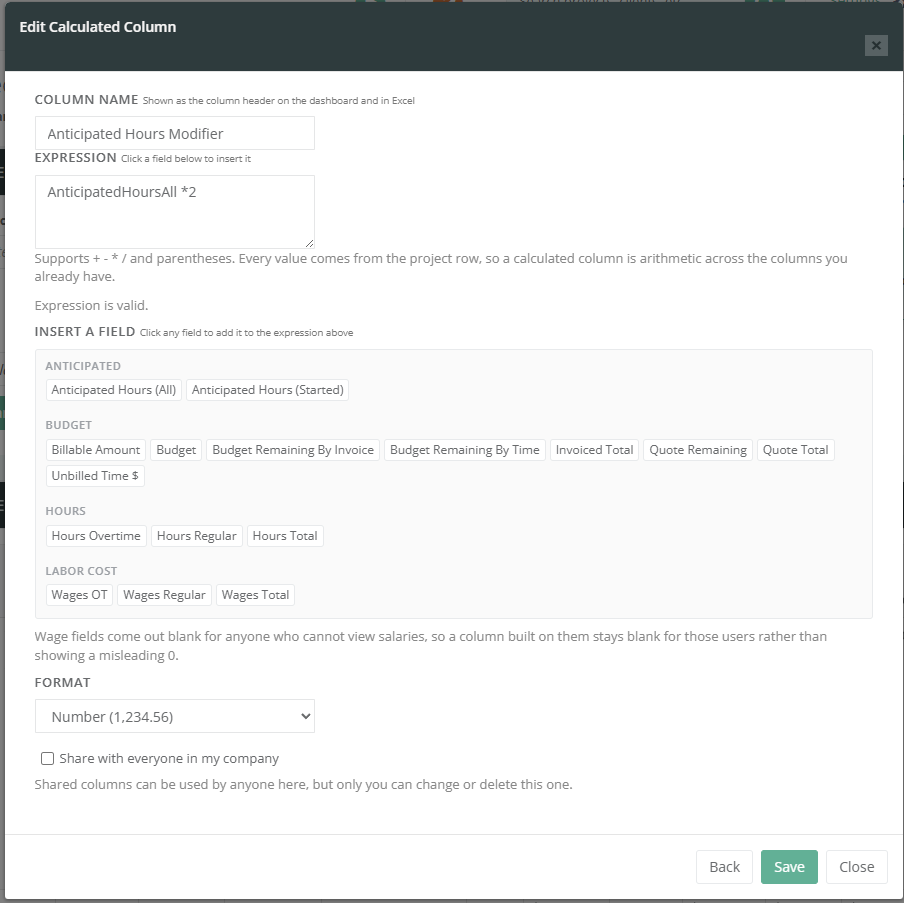
| Insert a Field | The palette of available fields, grouped by category. Click any field to drop its name into the expression at the cursor. Hovering a field shows the exact name that will be inserted. |
| Format | Number (1,234.56), Money ($1,234.56) or Percent (12.34%). This controls display only; it does not change the math. |
| Share with everyone in my company | When checked, everyone at your company can add this column to their views. Only you, the creator, can change or delete it. |
Validation runs as you type and reports the result under the expression box. A valid expression reads "Expression is valid." An invalid one names the problem and, where it can, the character position.
Available fields
These are the only names an expression may use. Anything else is rejected as "not a known field."
| Category | Fields |
|---|---|
| Hours | Hours Regular, Hours Overtime, Hours Total |
| Anticipated | Anticipated Hours (All), Anticipated Hours (Started) |
| Labor Cost | Wages Regular, Wages OT, Wages Total |
| Budget | Budget, Budget Remaining By Invoice, Budget Remaining By Time, Quote Total, Quote Remaining, Invoiced Total, Billable Amount, Unbilled Time $ |
Anticipated Hours (All) counts every scheduled item on the project. Anticipated Hours (Started) counts only items that have time logged against them. For an over/under comparison against Hours Total, use (All): time entries that were never tied to a scheduled item are common, and (Started) narrows the plan without narrowing the actual, which makes almost every job look badly over.
The three Labor Cost fields follow salary visibility. If a user is not permitted to see salaries, those fields resolve to blank rather than zero for that user, and any column built on them comes out blank as well. That is deliberate. A "Labor Cost w/ Multiplier" column reading $0.00 would look like a real finding instead of a hidden value.
Adding a Calculated Column to a view
Creating the column does not put it on the dashboard. To do that:
- Select the view you want to change in Current View.
- Click the Edit Columns icon (the columns icon in the toolbar).
- In Available Columns, look under the Calculated Columns heading at the top of the list. Calculated Columns are listed first, ahead of the standard fields.
- Check the column you want.
- Drag it into position in Selected Columns.
- Click Save.
Editing a Calculated Column
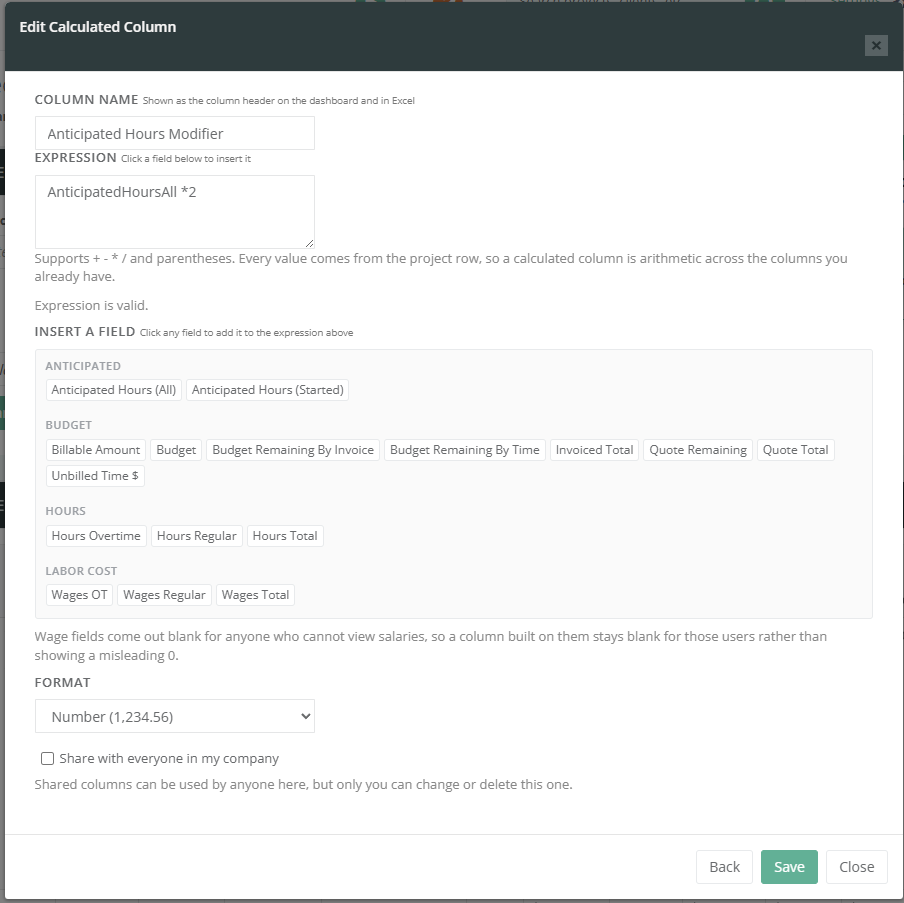
Open Calculated Columns, then click the pencil on the row you want to change. Change the name, expression, format or sharing, and click Save.
Edits take effect everywhere the column is used the next time the dashboard loads. Renaming a column updates the header on every view that shows it; you do not need to re-add it. Only the person who created a column sees the edit and delete buttons for it. If someone else shared a column with you, you can use it but not change it.
Deleting a Calculated Column
Click the trash icon on the row and confirm. Kudurru Stone does not block the deletion when views are using the column. Instead, any view that contained it simply stops showing that column, and the rest of the view is left exactly as it was.
The delete is a soft delete. The column disappears from the pickers and the grid, but the definition is retained, so nothing else in your saved views is rewritten behind your back. If you delete a shared column, it disappears for everyone in your company who was using it, so check with your team first if you are not sure.
Tips
- Build the expression by clicking fields in the palette instead of typing them. Field names must match exactly, and clicking guarantees they do.
- Watch the validation line before you save. A saved expression is always a valid one, so a red message means the Save will be rejected.
- A blank cell in a calculated column is not an error. It means the expression could not produce a number for that project, usually because a value it needs is missing, because it divided by zero (a job with no budget in a Budget Used % column), or because the column uses wage fields you are not permitted to see.
- A Calculated Column cannot reference another Calculated Column. Repeat the arithmetic instead. That is why the Margin % template writes out "(Invoiced Total - Wages Total) / Invoiced Total * 100" rather than reusing Gross Margin.
- Calculated Columns come through on the Excel export as real numbers, not text, so they sum and chart correctly in the spreadsheet.
- Leave Share unchecked while you are experimenting, then turn it on once the column is right. Shared column names have to be unique across your whole company.