![kudurrustone-logo.png]](https://kb.kudurrustone.com/hs-fs/hubfs/kudurrustone-logo.png?height=40&name=kudurrustone-logo.png)
Overview
The KudurruStone REST API allows you to pull your firm's data directly into Power BI for custom reporting and analysis. This article covers the essentials to get connected: authentication, the pagination model, and a working Power Query example you can adapt for any endpoint.
Base URL
https://api.kudurrustone.comAuthentication
All requests require your API key passed as a request header:
| Header | Value |
|---|---|
X-Api-Key |
Your API key (found in KudurruStone under Settings → API) |
Available Endpoints
| Resource | Endpoint |
|---|---|
| Quotes | /api/v1/quotes |
| Projects | /api/v1/projects |
| Time Entries | /api/v1/time-entries |
Pagination
All list endpoints return a paginated response. The default page size is 25, with a maximum of 100 per request.
Response envelope:
{
  "data": [ ... ],
  "page": 1,
  "pageSize": 100,
  "totalCount": 347,
  "totalPages": 4
}
Use the page and pageSize query parameters to control paging:
GET /api/v1/quotes?page=1&pageSize=100Power Query — Paginated Data Function
The following M function handles pagination automatically, fetching all pages and combining the results. Replace the endpoint and API key as needed.
let
    GetPage = (page as number) =>
        let
            Url      = "https://api.kudurrustone.com/api/v1/quotes"
                       & "?page=" & Number.ToText(page)
                       & "&pageSize=100",
            Raw      = Json.Document(
                           Web.Contents(Url, [
                               Headers = [#"X-Api-Key" = "YOUR_API_KEY_HERE"]
                           ])
                       ),
            Records  = Raw[data],
            Total    = Raw[totalPages],
            NextPage = if page < Total then @GetPage(page + 1) else {},
            Combined = Records & NextPage
        in
            Combined,

    AllRecords = GetPage(1),
    ToTable    = Table.FromList(AllRecords, Splitter.SplitByNothing(), {"Column1"}),
    Expanded   = Table.ExpandRecordColumn(ToTable, "Column1",
                     Record.FieldNames(ToTable{0}[Column1]))
in
    Expanded
To use this for a different endpoint, change the URL path (e.g. /api/v1/projects). The pagination logic stays the same across all endpoints.
Filtering
Query parameters are available on each endpoint to narrow results at the source — useful for reducing load when you only need a specific date range or status. For example:
/api/v1/quotes?startDate=2025-01-01&endDate=2025-12-31&status=Open
/api/v1/quotes?modifiedSince=2025-03-01T00:00:00
Refer to the full API reference for the complete list of filter parameters available on each endpoint.
You can find our full API reference here:
Step by Step - Connection
- Once in PowerBi click on Get Data and then Web
- Select the Advanced
- URL Parts - Enter your endpoint you wish to use. For example:
- https://api.kudurrustone.com/api/v1/quotes
- HTTP request header - Enter you API Key
- Name: X-Api-Key
- Value: <YourAPIKey>
- Click OK
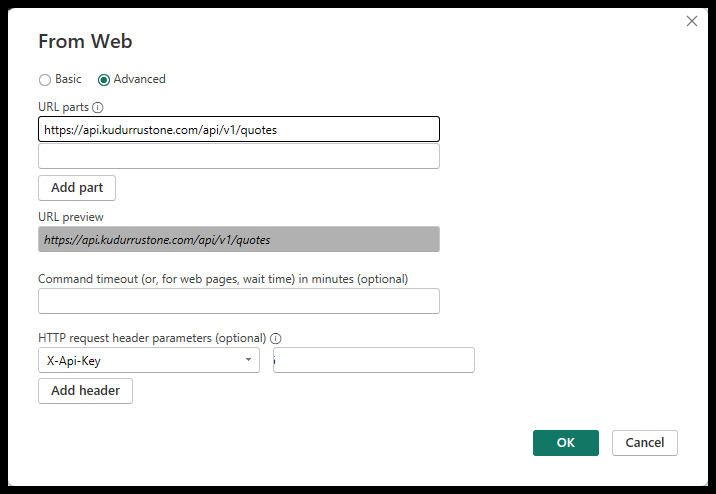
Now you should be seeing the first page of the results returned. You will then need to filter your data get all available pages.
Step by Step - Filters and All Pages
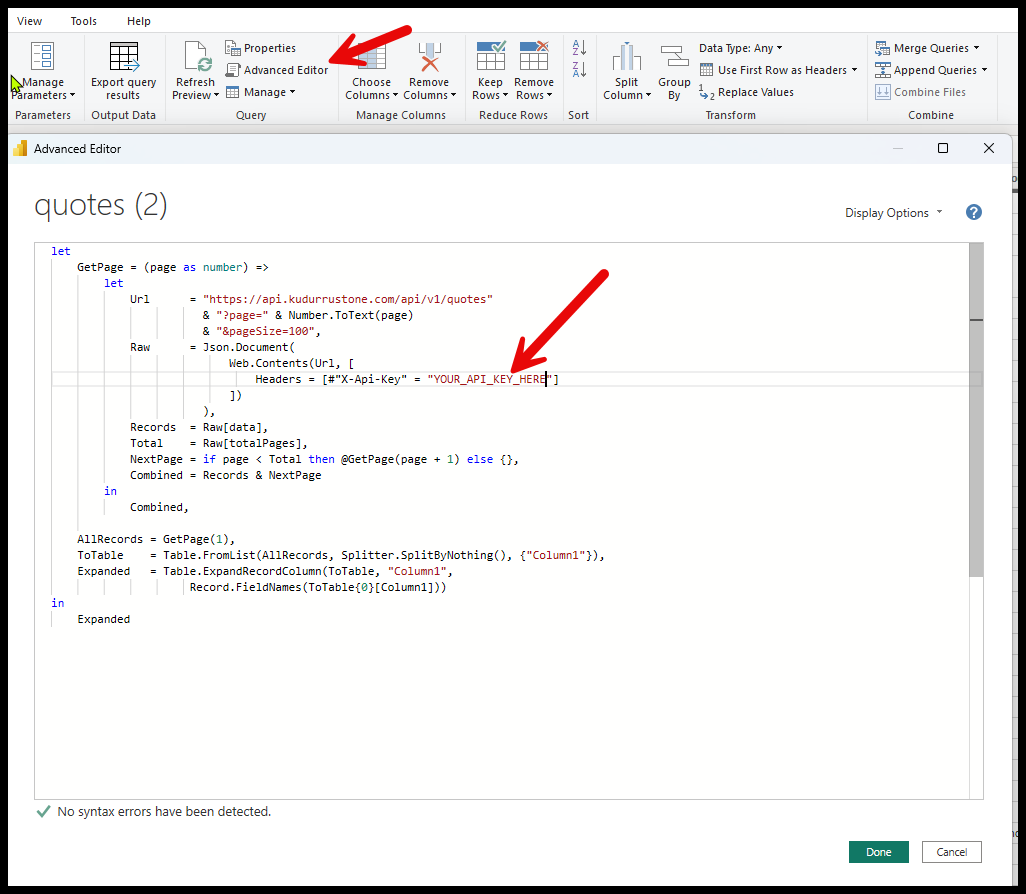
- Click on Advanced Editor
- Paste in the Power Query code from above. This code will allow all pages to load and allow you to add filters to the data.
Tip: Be sure to replace the "YOUR_API_KEY_HERE" with your actual API Key
- Follow the Filtering section above on how to add filtering and refer to our API reference for the available filters. API Reference
Tips
- Store your API key as a Power BI parameter rather than hardcoding it in your queries.
- Use
modifiedSincefor incremental refresh scenarios — it returns only records changed since a given date/time, ordered by last-modified descending. - Date parameters use ISO 8601 format (
YYYY-MM-DDfor dates,YYYY-MM-DDThh:mm:ssfor datetimes). - If you hit the 100-record page limit, the function above handles all subsequent pages automatically.