![kudurrustone-logo.png]](https://kb.kudurrustone.com/hs-fs/hubfs/kudurrustone-logo.png?height=40&name=kudurrustone-logo.png)
Prerequisite: You must have at least one Primary Contact defined on the Client record.
Overview
From the Quote Dashboard or the Quote Edit page you can quickly send email updates—either using a pre‐built template or by composing a one‐off message. All outgoing emails are automatically logged under Quote Communication, so your team stays in sync.
Open Quote Communication
-
Locate your quote on the Quotes list or on the Quote Edit page.
-
Click the Email icon (✉️) in the Actions column to open the Quote Communication panel.
Click the envelope icon to view all communications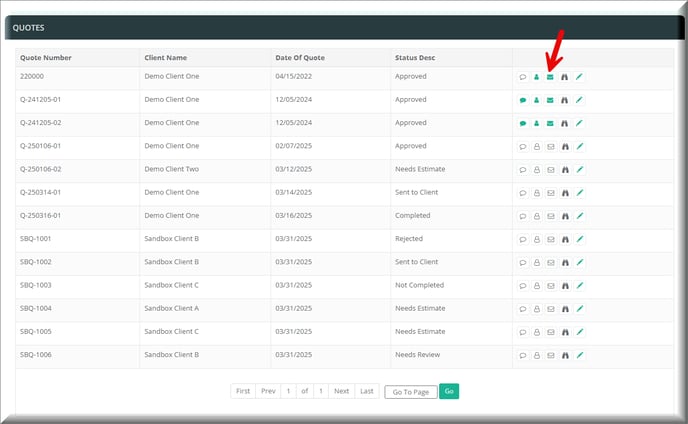
Launch the Send Email dialog
In the Quote Communication modal you’ll see a history of calls, meetings, and emails:
-
Log New – record a phone call or meeting
-
Send Email – compose & send a message
Click Send Email to open the composer:
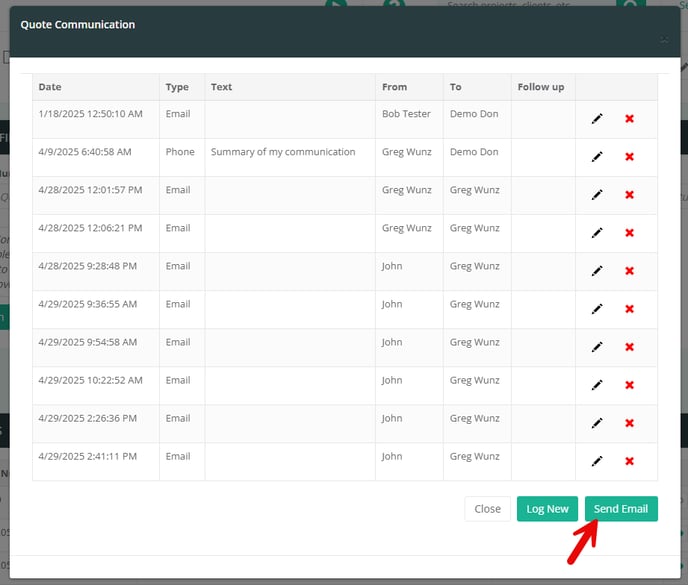
Compose your email
| Field | Description |
|---|---|
| Template | (optional) Select one of your Email Templates to pre-load subject, body, and merge-fields. |
| Merge/Primary Contact | Choose which contact’s data powers merge-fields (e.g. |
| To | Pick one or more client contacts, or type any valid email address. |
| Cc | (optional) Add additional recipients—again from contacts or free-form. |
| Subject | Edit the template’s subject or type your own. |
| Body | Rich-text editor: format text, insert links/images, or click Insert Field to add placeholders (e.g. |
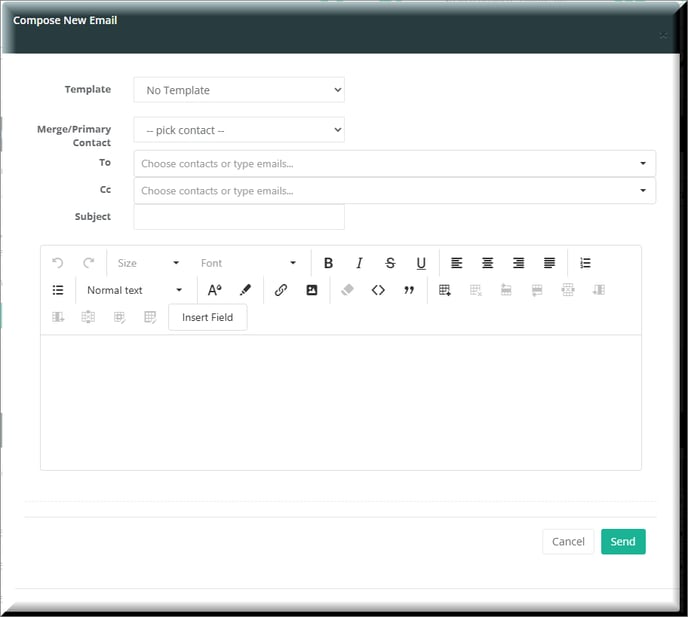
Use Insert Field to drop in any merge-field from the chosen Template
Tip: If you don’t select a Template, you can still insert merge-fields manually—just pick from the dropdown under Insert Field.
Send or Cancel
-
Send → delivers the email and logs it immediately under Quote Communication.
-
Cancel → closes the dialog without logging or sending anything.