![kudurrustone-logo.png]](https://kb.kudurrustone.com/hs-fs/hubfs/kudurrustone-logo.png?height=40&name=kudurrustone-logo.png)
Often you may need to track time spent preparing a quote. This may involve research, site visits and estimating. Once you apply time to a quote and that quote becomes a project you have the option of moving that time forward into the newly created project.
Since all employee time must be applied to a project and a project task you need to have a container project and task to apply this quote time to. This can be generated for you automatically through the following setup process or you can select one that you have already created.
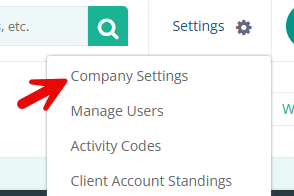
You must first navigate to your Company Settings available from your Settings Menu. See the following screenshot:
Once you are on your Company Settings you should see a option for Quote Prep Project as shown in the below screenshot:
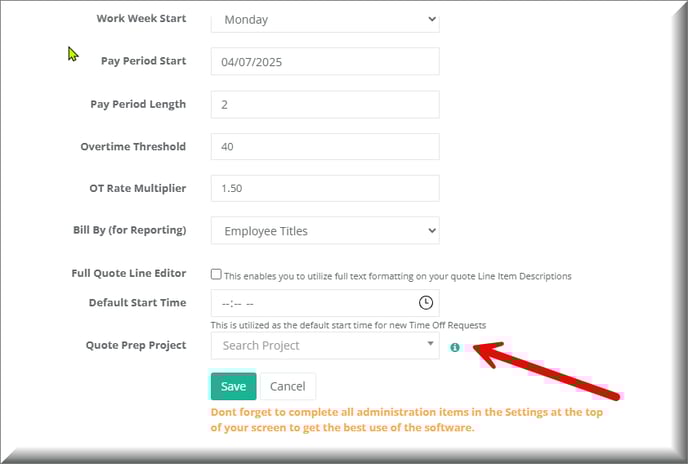
If you already have a project you wish to apply Quote Prep time to you can select that from the list. However, if you would like one generated for you simply click on the  symbol. This will open this window:
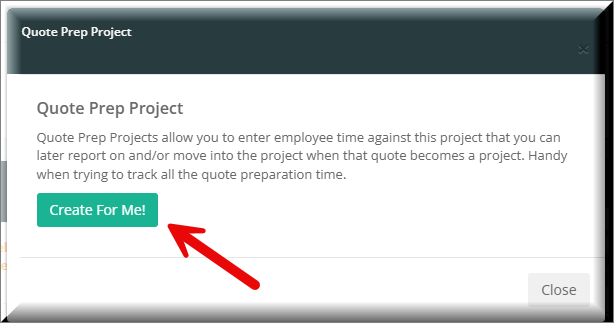
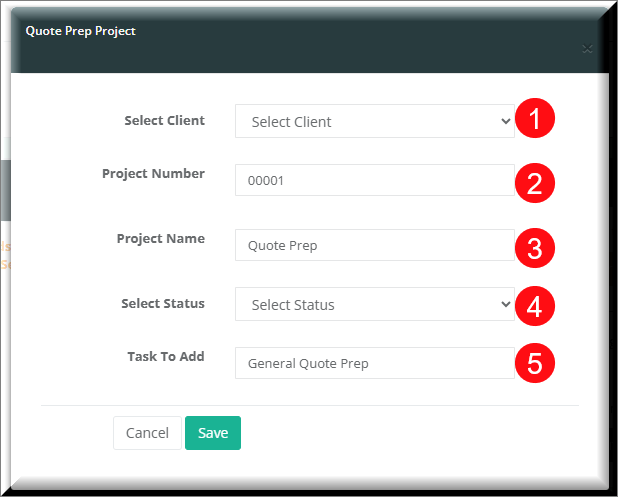
Then click on the "Create for Me" button that will allow you to create a Project and Task for Quote Prep time. One you click on the "Create for Me" button the following window will open and each property of that window is described below:
- You must select the Client. We recommend that you have a client with the name of your company for general admin work such as this.
- This will have a default Project Number already added. You can enter your own or leave it as is.
- The default for Project Name is Quote Prep to make it more obvious what this project is for.
- You must select a status for this project. We recommend something like In Progress or Open. Something that time can be applied to.
- You must have at least one Task for this Quote Prep project. The default we suggest is General Quote Prep. You will be able to add more Tasks to this project in the future through conventional Task Management methods within Kudurru Stone.
After you click Save, the project should be create along with the task. Additionally that project should then be selected on your Company Settings page as shown below:
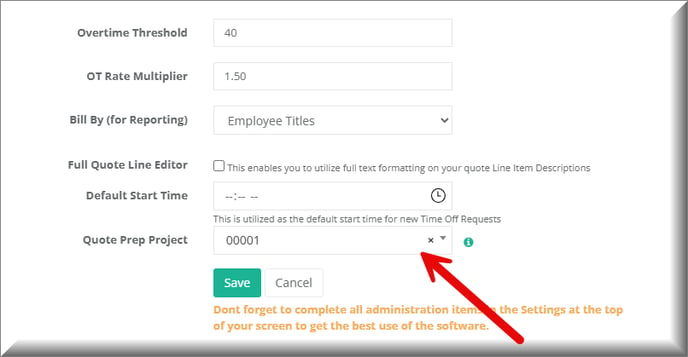
Now that you have your Quote Prep Project setup and assigned you can apply time to that.
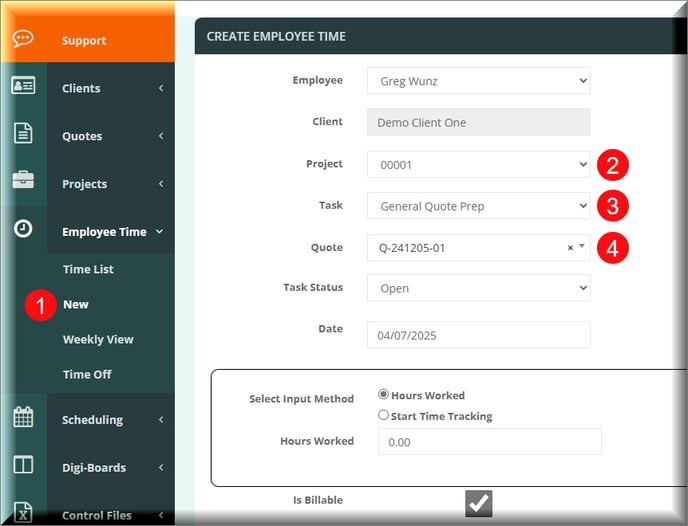
Now that you have your Quote Prep project created and assigned with your company settings you can apply time to it through the Employee Time menu item and then clicking on "New" in the left hand navigation menu. Once you have navigated to the Employee Time -> New page you can select your Quote Prep Project, associated task and then enter your time.
Please see our other knowledge base article for moving this time to the actual Project.