![kudurrustone-logo.png]](https://kb.kudurrustone.com/hs-fs/hubfs/kudurrustone-logo.png?height=40&name=kudurrustone-logo.png)
Prerequisites
-
Audience: Project managers, coordinators, or users with access to edit project tasks.
-
Requirements:
-
Access to project editing permissions.
-
A visible "Tasks" column or Digiboard access, depending on the method used.
-
Overview
This article explains three different ways to add a Project Phase to a task in [Your System Name]. Each method leads to the same result—updating the task's Project Phase—but provides flexibility based on where you're working within the system.
Estimated Time: 2–5 minutes
Skill Level: Basic user
Table of Contents
From the Project Edit Page
-
Navigate to the desired project.
-
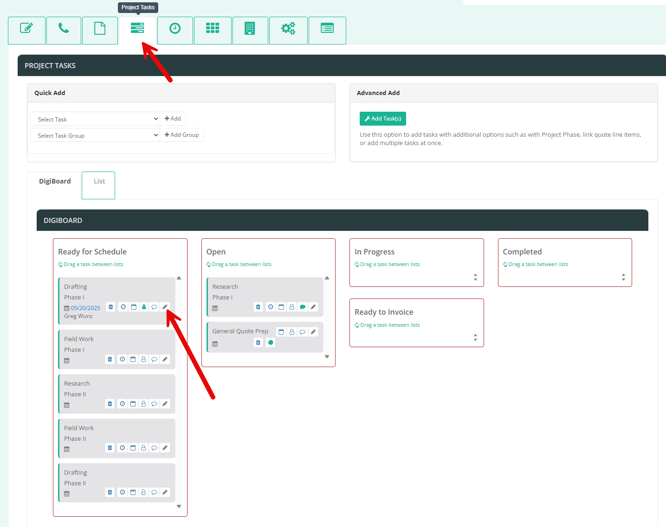
Scroll to the Tasks tab near the bottom of the Project Edit page.
-
Locate the task you want to edit.
-
Click the edit pencil icon next to the task.
-
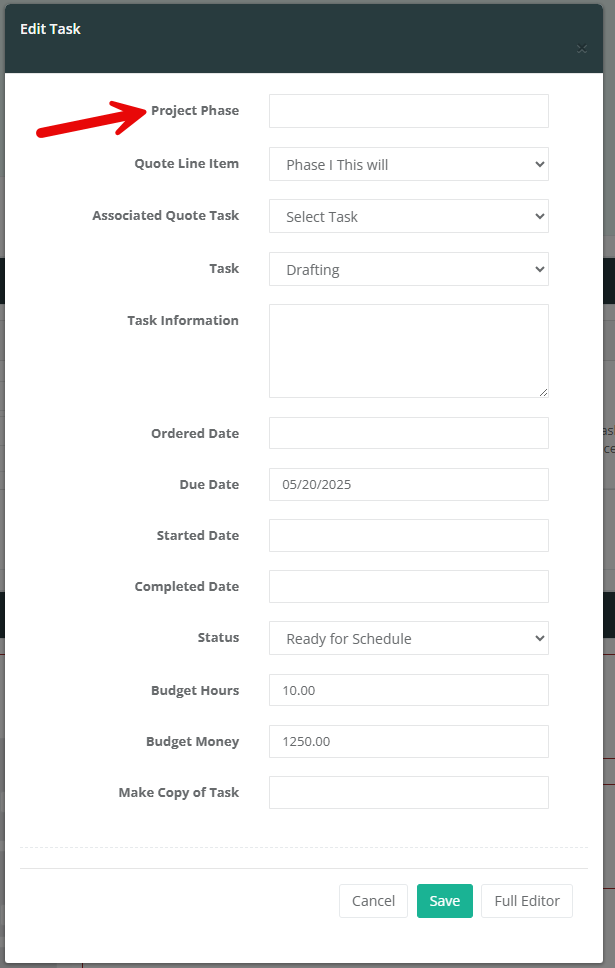
A modal window will open with the Project Task editor.
-
Locate the Project Phase field and enter the desired phase name.
-
Click Save to apply the changes.
From the Project Dashboard
Note: You must have a Project Dashboard View that includes the Tasks column. If you don’t see this column, refer to Managing Project Dashboard Views.
-
Open your Project Dashboard.
-
Ensure the view includes a Tasks column.
-
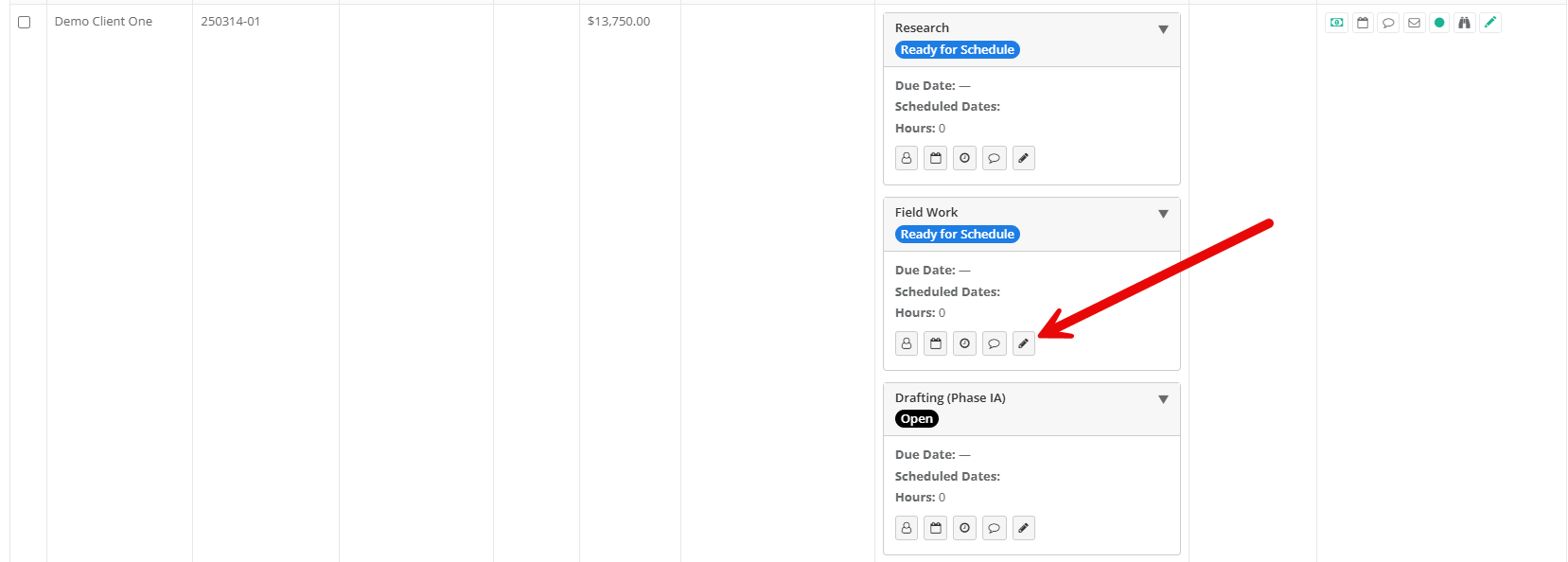
Locate the task you want to update.
-
Click the edit pencil icon for the task.
-
This opens the same Project Task editor as in the Project Edit method.
-
Enter the desired phase in the Project Phase field.
-
Click Save.
From the Task Digiboard
-
Go to the Project Digiboard view.
-
All project tasks appear as cards.
-
Find the task you want to update.
-
Click the edit pencil icon on the task card.
-
The same Project Task editor modal will open.
-
Add or modify the Project Phase field as needed.
-
Click Save to update the task.