![kudurrustone-logo.png]](https://kb.kudurrustone.com/hs-fs/hubfs/kudurrustone-logo.png?height=40&name=kudurrustone-logo.png)
Introduction
Client Account Standing is useful to flag those clients who have not paid or otherwise may not be in the best standing with you company. You would use this because you may not want to do more work for this client in this situation.
Walkthrough
Settings
The first step in using this functionality is to first add your Account Standings for you company.
An Admin user of your company will need to do this.
From the Settings Menu click on "Client Account Standings"
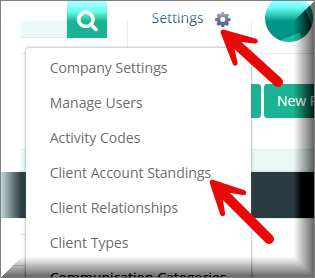
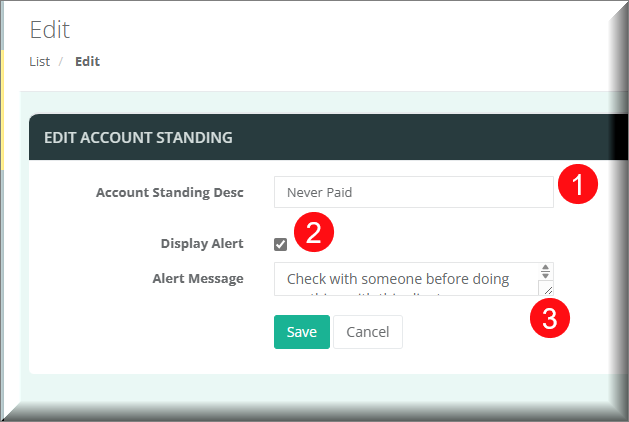
From there you can manage your list of Client Account Standings adding new and editing existing as needed. When editing a Client Standing there are several fields to be aware of:
- This is what will be displayed in a dropdown on the Client Edit page.
- This checkbox when checked means that an alert will be displayed when you attempt to add a quote or a project to this client.
- The Alert Message box is the message that will display when adding a quote or a project to this client.
Usage
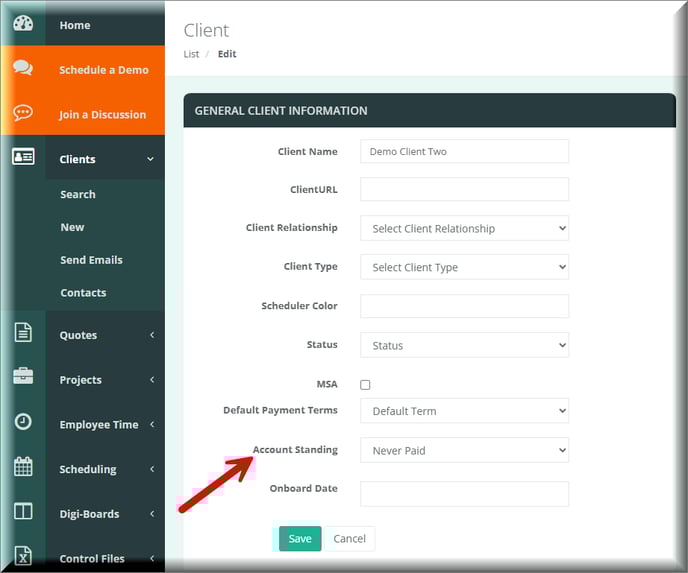
Now that you have your Client Account Standings setup you can assign a client to those. You can review our Editing a Client article for more information on how to specifically edit a client. Once you are on your Client Edit page you can find the field for "Account Standing" and pick the appropriate standing.
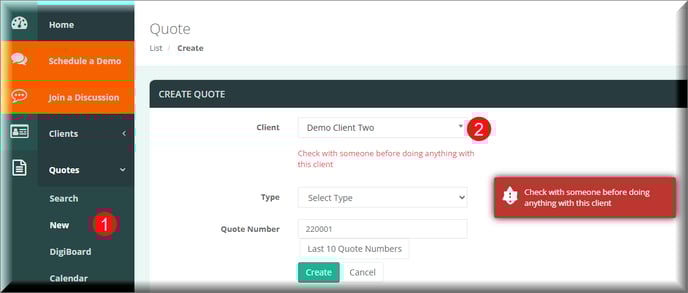
Now when you create a Quote or a Project for this client you will get a message referring to the client's Account Standing.