![kudurrustone-logo.png]](https://kb.kudurrustone.com/hs-fs/hubfs/kudurrustone-logo.png?height=40&name=kudurrustone-logo.png)
Prerequisites
-
Requirements:
-
You must have Rate Schedule Items created in your system.
-
For help setting up Rate Schedule Items, refer to the KB article: How to Add Rate Schedule Items
-
Overview
This article explains how to create and configure a Quote Template using existing Rate Schedule Items. Quote Templates help streamline the quoting process by predefining common quote lines.
Step-by-Step Instructions
1. Navigate to Quote Templates
-
Log into your system.
-
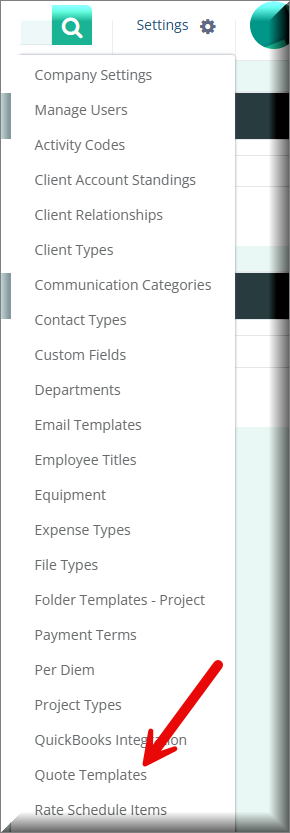
Click on Settings (top right corner).
-
In the settings menu, select Quote Templates.
2. Create a New Quote Template
-
On the Quote Templates list page, click the New button.
-
Enter a name for your template in the Template Name field.
-
Click Create.
3. Configure the Quote Template
-
After creation, you'll return to the Quote Templates list.
-
Click the Edit (pencil) icon next to the new template.
4. Add Quote Lines to the Template
-
Scroll down to the Quote Lines section.
-
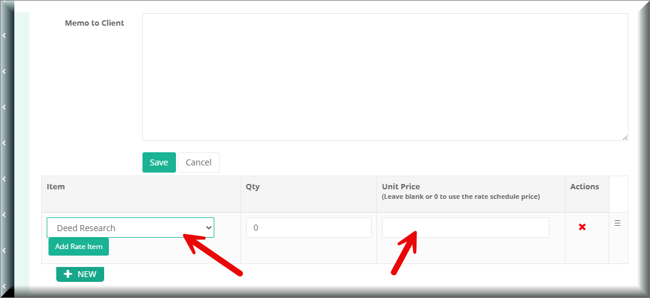
Click the NEW button to add a line item.
-
Select a Rate Schedule Item from the dropdown list.
-
Optionally enter a default quantity.
-
For Unit Price, choose one of the following:
-
Leave blank or enter
0to automatically use the Rate Schedule price. -
Enter a custom price to override the default Rate Schedule price.
-
Tip: Custom prices in the template override the default rate schedule prices during quote generation.
5. Add Line Tasks (Optional)
Once you have saved your quote line items, you can define Line Tasks for each one.
-
Click the relevant quote line to expand task options.
-
Add tasks that should be associated with that line item.
Why add Line Tasks?
Including tasks here allows for quick, efficient insertion of predefined tasks into the quote when applying this template—saving time and reducing manual entry.
Summary
Once saved, this Quote Template will be available when generating new quotes, helping standardize pricing and streamline your sales process.