![kudurrustone-logo.png]](https://kb.kudurrustone.com/hs-fs/hubfs/kudurrustone-logo.png?height=40&name=kudurrustone-logo.png)
Note: If no color is specified for a user the Task Scheduler will use the default color.
- In order to set scheduler item colors to that of your users you must first specify colors for your users. You can view this KB Article for help in setting user settings: Manage Users
- Once you find the user you can edit the User Color as shown below:
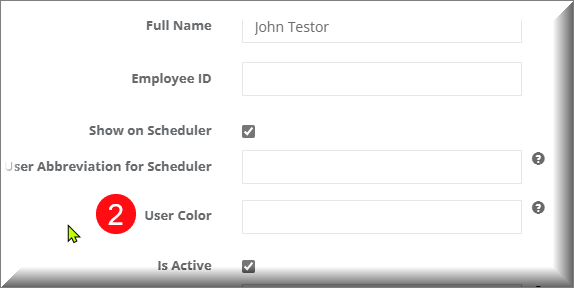
- Once you have selected the color, save your changes for the user.
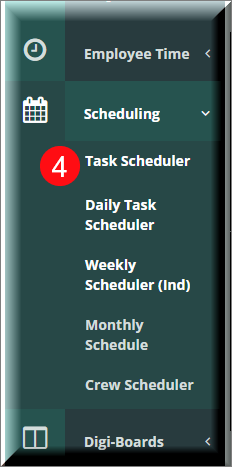
- Next you will navigate to your Task Scheduler as shown below:
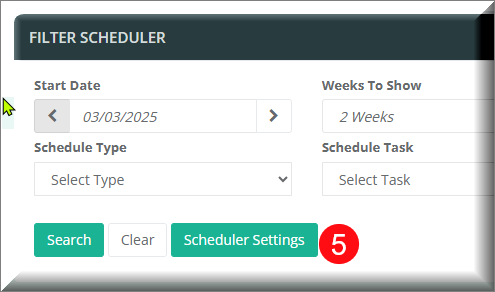
- After the Task Scheduler load you will click on the "Scheduler Settings" button in the Filter section as shown:
- Once the Scheduler Settings window opens scroll until you see "Schedule Item Color". Select the option for "By User Color". Then click the Save button to save your settings:
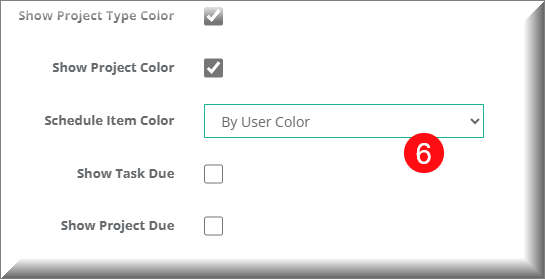
- Now your scheduled items should be the color of the user they are assigned to within your task scheduler.